Get started with EndureTrade
Install the Chrome extension, create a free account, enable the sites you journal on, sign in from the extension, and start a session from the floating bar. Your journal lives in the web app — see how it works for journal actions, pinned memos, tags, strategies, notes, calculations, and report layouts.
Getting started
Install the Chrome extension, then create your EndureTrade account.
Step 1
Install the extension
Add the extension from the Chrome Web Store, pin the icon, enable sites, sign in, and start your first session on the chart.
Step 2
Create your account
Sign up on the web so the extension and app share the same journal.
More walkthroughs on @EndureTrade on YouTube.
Install and get ready
Chrome Web Store install, pin the icon, enable sites, sign in, and start your first session on the chart.
Step 1
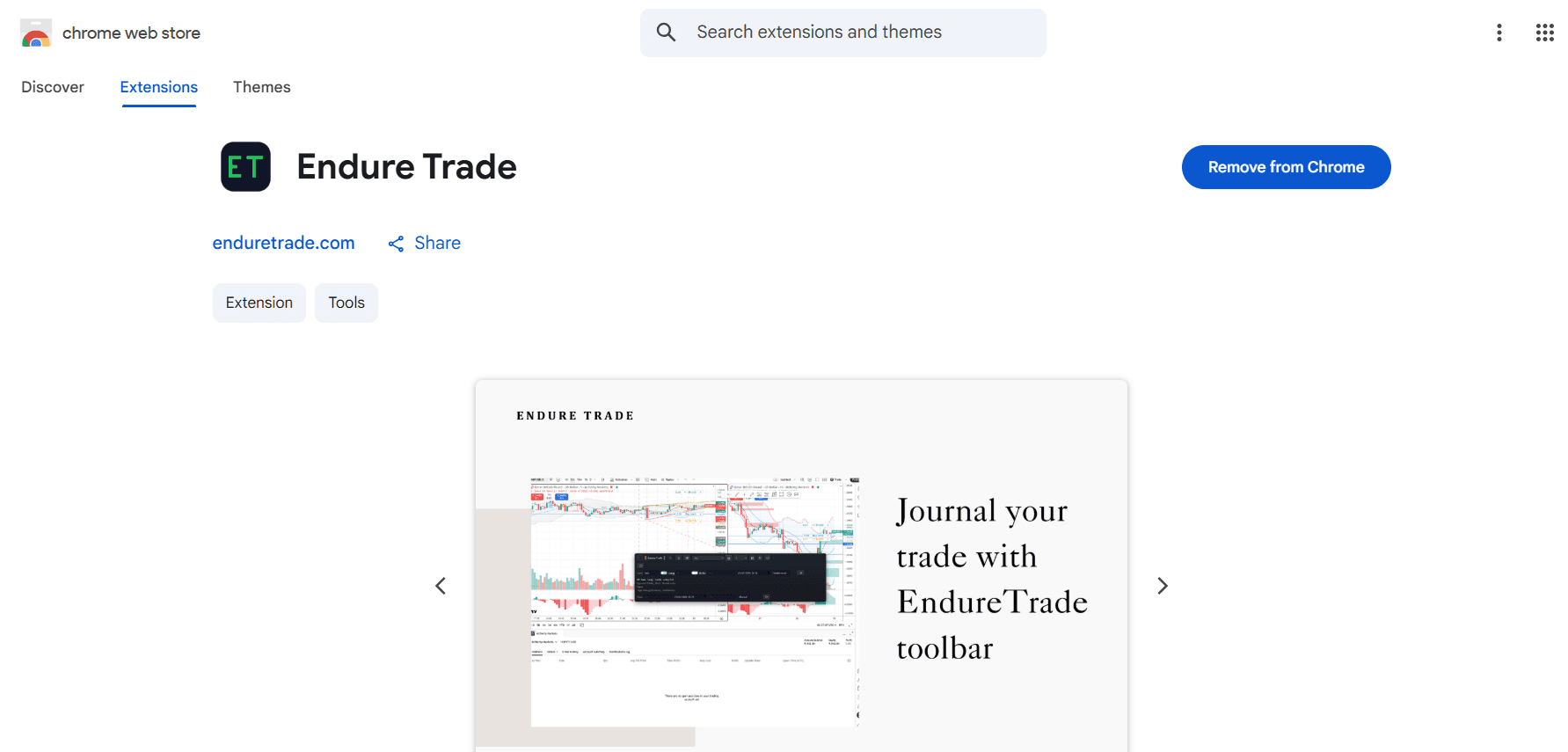
Install from the Chrome Web Store
Find the extension in the Chrome Web Store and click Add to Chrome.
Step 2
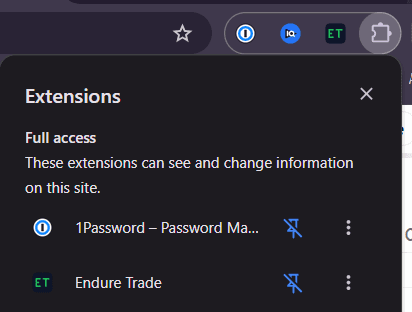
Pin the extension icon
Keep the icon visible in Chrome so sign-in and settings are always one click away.
Step 3
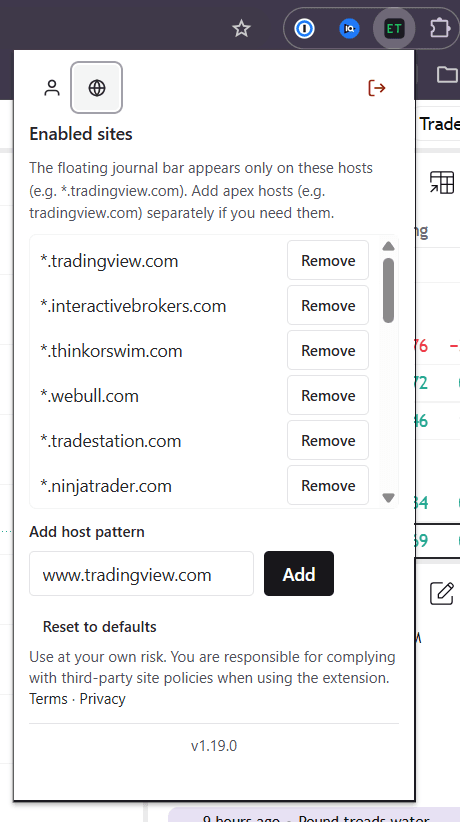
Choose where the bar runs
Many chart and broker sites are pre-enabled. Add host patterns or turn sites off so the journal only runs where you want.
Step 4
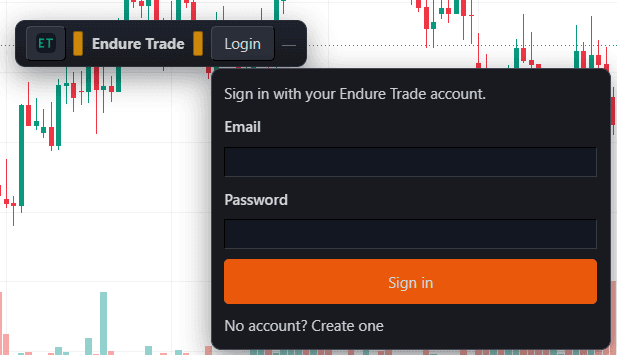
Floating bar on enabled pages
After install, open a site you enabled and the floating bar appears on the page. Sign in when you are ready to journal.
Step 5
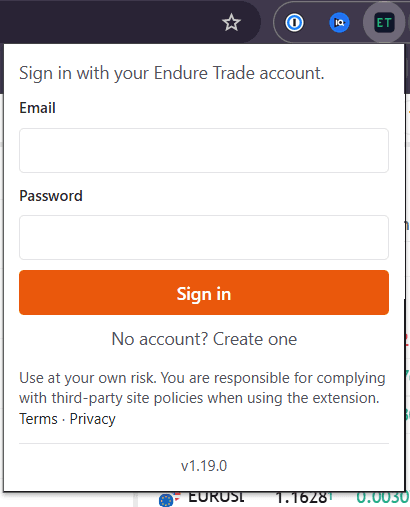
Sign in from the extension popup
Alternatively, click on the extension icon to sign in with your journal account. Sessions and trades are stored in your web journal.
Step 6
Account controls after sign-in
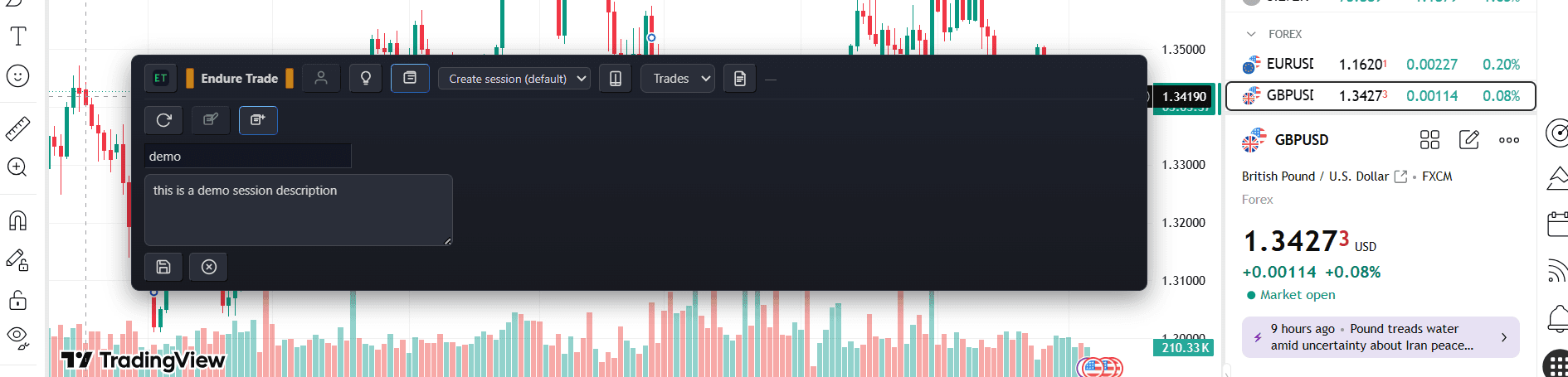
Once signed in, the bar shows your account controls — pick a session, open or close trades, and add notes without leaving the chart.

Step 7
Start or select a session
Create a new session or pick an existing one so every trade on that page rolls up to the right review.
After install
- Log trades from a floating bar on sites you enable
- Attach tags, strategies, notes, and in-tab screenshots
- Review sessions and trades in the EndureTrade web app
Feature walkthrough: how it works. Privacy: privacy policy. Already installed? Continue at welcome.