Pinned memos
Pin a personal Markdown memo as a floating window on chart sites you enable — keep playbooks visible while you journal. Create and edit memos in the extension memo panel or the Memos screen in the web app.
How pinning works
On an enabled chart site, open the memo module on the EndureTrade floating bar, select a personal memo, and pin it. A separate floating window appears on that page — drag, resize, edit, refresh, or unpin. Pins are scoped by the same enabled-site pattern used for journal actions, so related hosts share the same pins.
With journal actions
Pinned memos sit alongside journal actions on the floating bar. Keep a checklist or playbook visible while one-click actions fill your trade form or click page controls.
Minimise, screenshots, and limits
Minimise a pin to a small chip when you need chart space. Optionally hide a pin from chart screenshots captured from the bar. Your plan caps how many memos you can pin at once — see pricing.
Prefer a file backup? See the memo import guide.
Pinned memos walkthrough
Pin a memo, resize it, minimise to a chip, and unpin.
More walkthroughs on @EndureTrade on YouTube.
Pinned memos in the extension
Floating windows on enabled sites, next to journal actions on the bar.
Pin a memo to the chart page
Pin a personal Markdown memo as a floating window on the page — drag, resize, and keep your playbook visible while you journal.
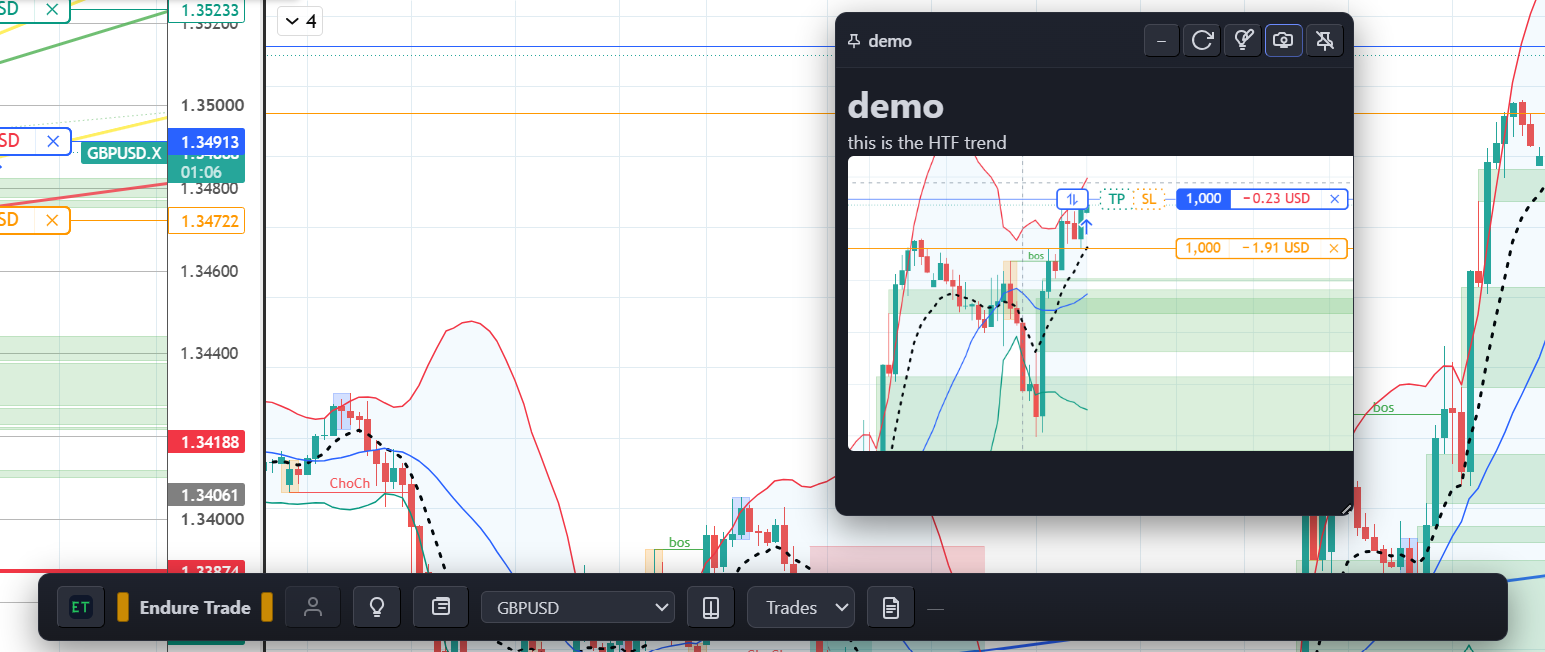
Pinned memo beside journal actions
Keep research notes pinned while one-click journal actions speed up logging — both live on the floating bar for sites you enable.
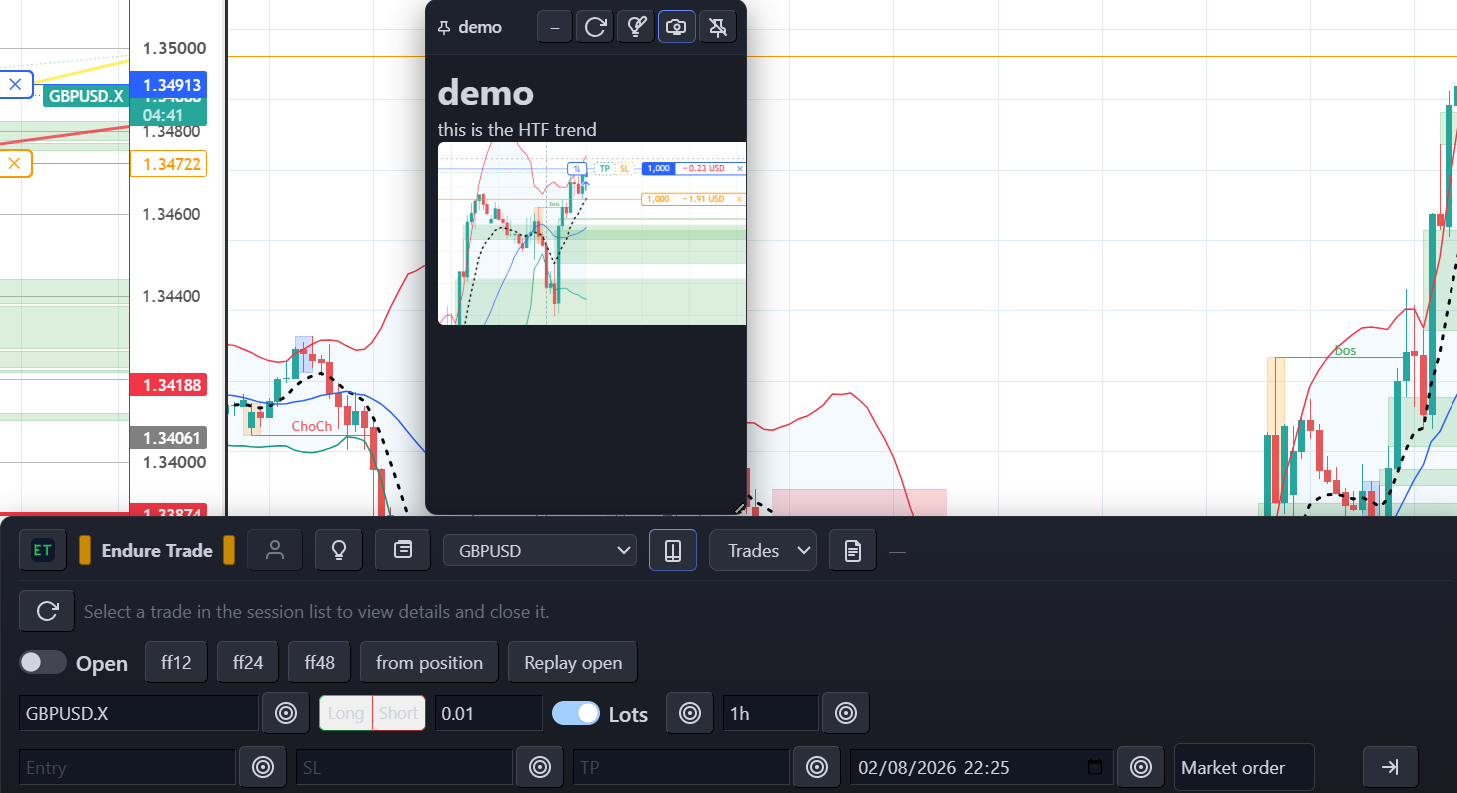
Minimise pinned memos to a chip
Collapse a pinned memo to a small chip when you need more chart space, then expand it again when you need the note.
